How to Give Us Access to Your Domain
This is quick and easy. Just find your provider below and follow the steps.
What Do We Need?
Your domain is your website address (like yourbusiness.com). A company called a domain provider manages it for you. We need access to your account there so we can connect your domain to your new website.
Find Your Provider
Click any name below to jump right to the steps.
Not sure who your provider is?
- Search your email for "domain renewal" or "domain registration". The company that sent it is your provider.
- Check your bank statements for a yearly charge of around $10-$20 from GoDaddy, Namecheap, Wix, or a similar company.
- Still not sure? Just email us at spastackgmb@gmail.com or text us at 208-779-8464 with your domain name and we will look it up for you.
GoDaddy
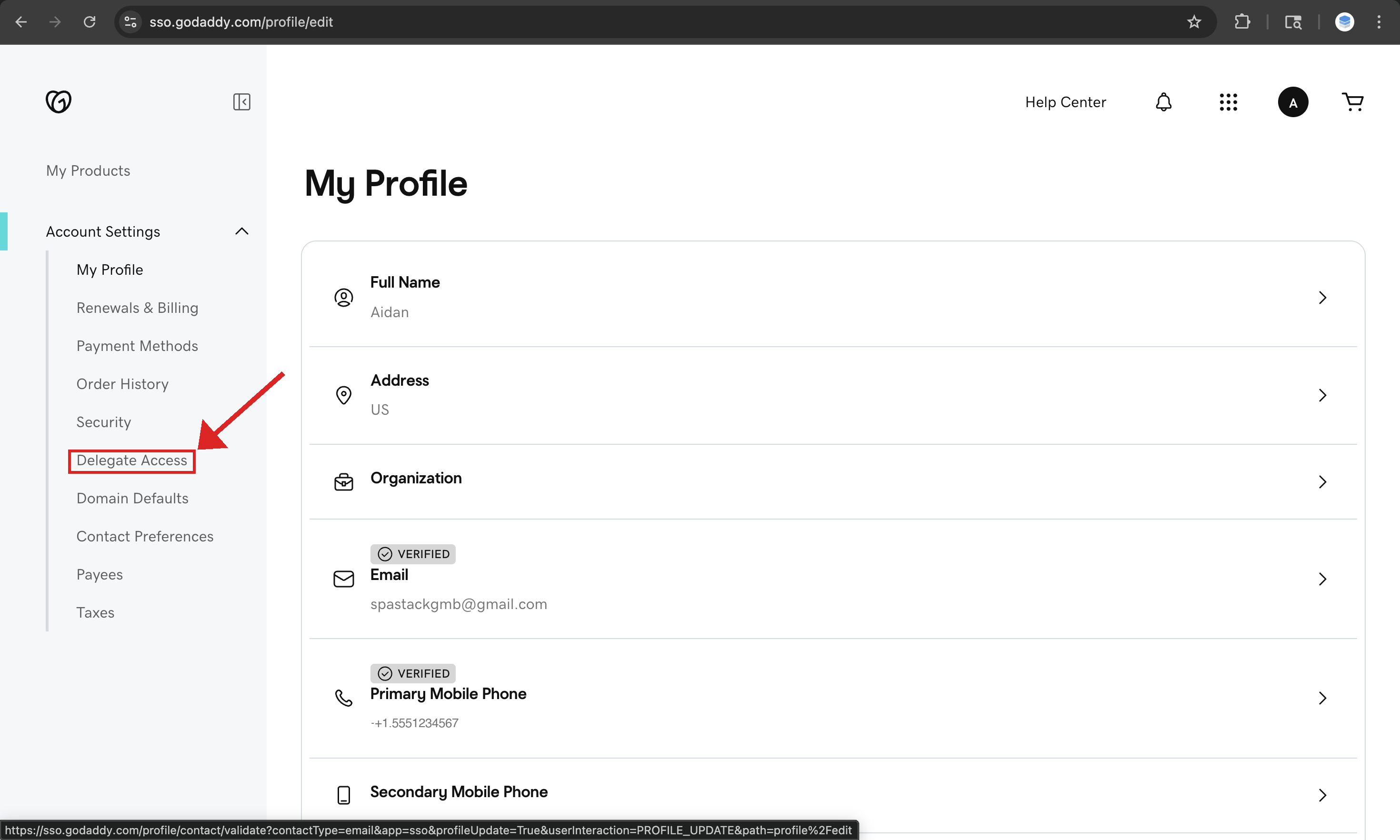
GoDaddy lets you invite us without sharing your password. It is called Delegate Access.
- Go to godaddy.com and sign in
- Click your initials in the top-right corner (the small circle)
- Click Account Settings
- Click Delegate Access in the left sidebar
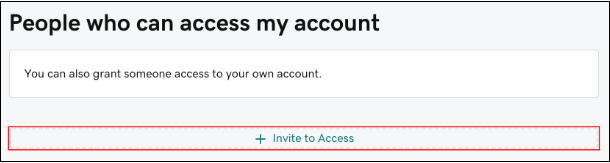
- Click Invite to Access
- Type in our email: spastackgmb@gmail.com (click to copy)
- Choose "Products & Domains"
- Click Send Invitation
- Let us know you sent it by clicking this button (the invite expires in 48-72 hours):
I Gave SpaStack Access - Let Them Know
Namecheap
Namecheap does not let you invite someone, so just share your login with us.
- Send us your Namecheap username and password — email us at spastackgmb@gmail.com or text us at 208-779-8464
- We will make the changes and let you know when we are done
- Let us know you sent it by clicking this button:
I Gave SpaStack Access - Let Them Know
Squarespace Domains
If you used to be on Google Domains, your account moved to Squarespace in 2023. You can still log in with your Google account.
- Go to domains.squarespace.com and log in
- Click your name in the top-right corner
- Click Account Settings
- Click Permissions
- Click Invite Contributor
- Type in our email: spastackgmb@gmail.com (click to copy)
- Set the role to Administrator
- Click Send Invite
- Let us know you sent it by clicking this button:
I Gave SpaStack Access - Let Them Know
Hostinger
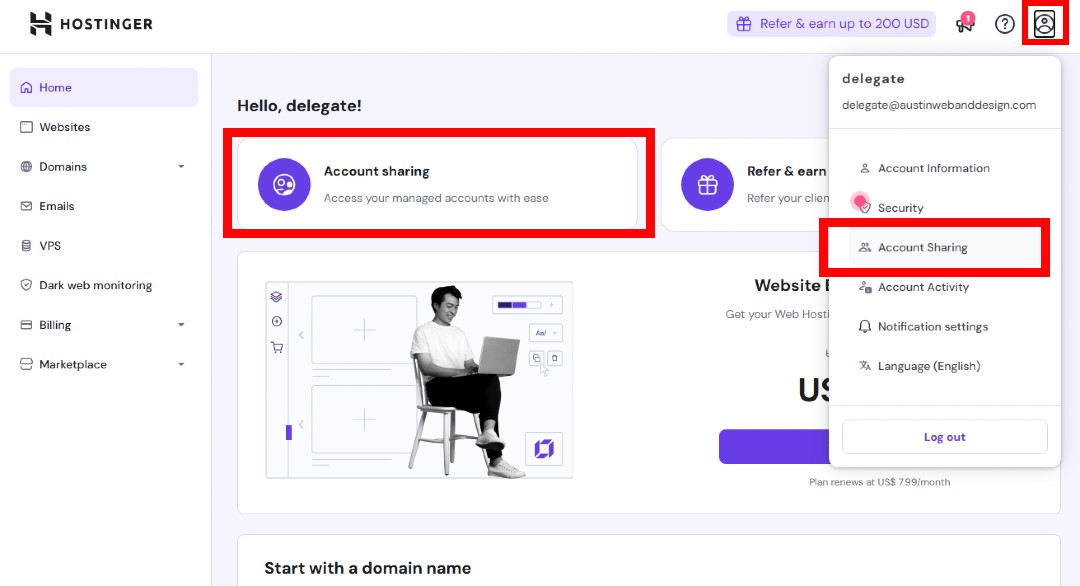
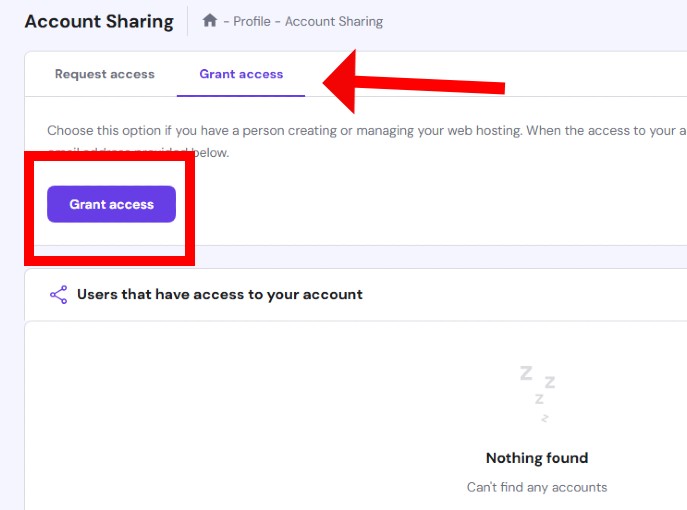
Hostinger lets you invite us through their Account Sharing feature.
- Go to hpanel.hostinger.com and log in
- Click your profile icon in the top-right corner
- Click Account Information
- Scroll down until you see Account Sharing
- Click Add user
- Type in our email: spastackgmb@gmail.com (click to copy)
- Choose Full access
- Click Send Invitation
- Let us know you sent it by clicking this button:
I Gave SpaStack Access - Let Them Know
Cloudflare
Cloudflare lets you invite us as a team member. No password needed.
- Go to dash.cloudflare.com and log in
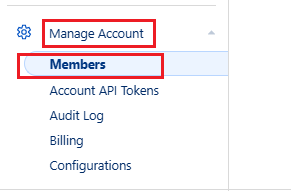
- Click Manage Account in the left sidebar
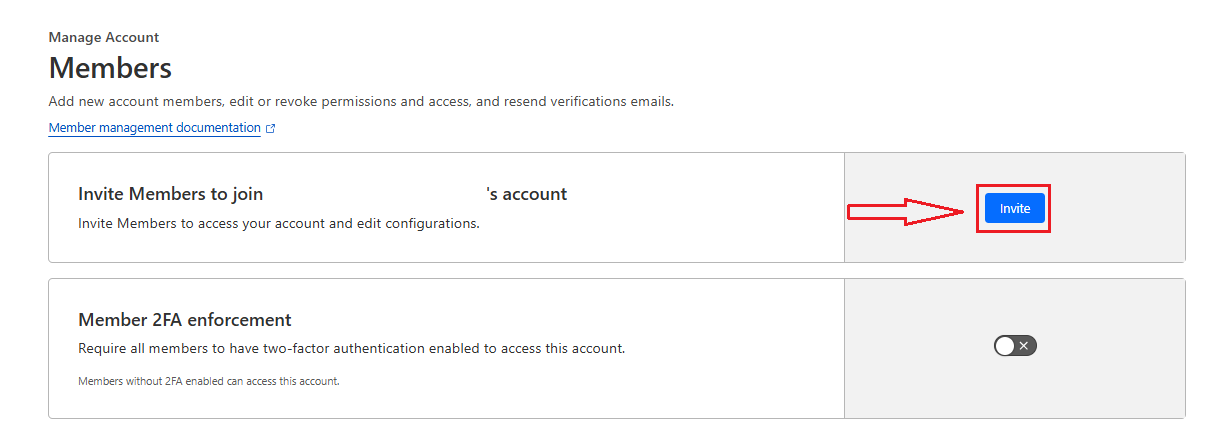
- Click Members
- Click the orange Invite button
- Type in our email: spastackgmb@gmail.com (click to copy)
- Choose Administrator
- Click Invite
- Let us know you sent it by clicking this button:
I Gave SpaStack Access - Let Them Know
Wix
Wix lets you invite us as a collaborator on your site.
- Go to wix.com and log in
- Go to your Dashboard
- Click Settings in the left sidebar
- Click Roles & Permissions
- Click + Invite People
- Type in our email: spastackgmb@gmail.com (click to copy)
- Choose the Admin role
- Click Send Invite
- Let us know you sent it by clicking this button:
I Gave SpaStack Access - Let Them Know
Bluehost
Bluehost does not let you invite someone, so just share your login with us.
- Send us your Bluehost email and password — email us at spastackgmb@gmail.com or text us at 208-779-8464
- We will make the changes and let you know when we are done
- Let us know you sent it by clicking this button:
I Gave SpaStack Access - Let Them Know
IONOS (1&1)
IONOS does not let you invite someone, so just share your login with us.
- Send us your IONOS Customer ID (or email) and password — email us at spastackgmb@gmail.com or text us at 208-779-8464
- We will make the changes and let you know when we are done
- Let us know you sent it by clicking this button:
I Gave SpaStack Access - Let Them Know
Network Solutions
Network Solutions does not let you invite someone, so just share your login with us.
- Send us your Network Solutions User ID (or email) and password — email us at spastackgmb@gmail.com or text us at 208-779-8464
- We will make the changes and let you know when we are done
- Let us know you sent it by clicking this button:
I Gave SpaStack Access - Let Them Know
Domain.com
Domain.com does not let you invite someone, so just share your login with us.
- Send us your Domain.com email and password — email us at spastackgmb@gmail.com or text us at 208-779-8464
- We will make the changes and let you know when we are done
- Let us know you sent it by clicking this button:
I Gave SpaStack Access - Let Them Know
Need Help?
If you get stuck, here is what you can do:
- Send us a screenshot of where you are and we will walk you through it
- Hop on a quick Zoom call and we will do it together
- Email us at spastackgmb@gmail.com or text us at 208-779-8464 for assistance
This only takes a few minutes and you only have to do it once!